App Store Screenshot Dimensions 2026: Complete Cheat Sheet
Apple changes its required screenshot sizes more often than most teams realise. This is the complete, up-to-date App Store screenshot dimensions reference for 2026 — every device, every aspect ratio, every gotcha — plus a free tool to resize all sizes from a single source file in one click.
Why screenshots are the most overlooked ASO lever
Your icon gets a tap. Your screenshots get the install. Apple's own research (and every ASO study from the last five years) shows that screenshots — specifically the first three above the fold — drive the majority of conversion lift on a store listing. They sit in the part of the funnel where intent is highest and friction is lowest, and they are the single asset most teams ship and forget.
Dimensions matter because Apple is strict. Upload an asset that is one pixel off the spec and App Store Connect rejects the entire build submission. Upload an asset at the wrong aspect ratio and your hero shot gets letterboxed, your headline gets cropped, and the conversion advantage evaporates. The cheat sheet below is the version we use internally at Verox to ship store assets for client launches.
What changed for 2026
Two practical shifts since 2024 are worth flagging before you dive into the table.
- The 6.9" display is now the canonical "large iPhone" size. Since the iPhone 16 Pro Max, Apple treats the 6.9" 1320 × 2868 frame as the master asset that downscales to older devices. If you are only going to design one set, design this one.
- The 5.5" slot is technically optional but still recommended. Apple no longer strictly requires 5.5" assets for new submissions, but listings that include them perform better in older markets where the install base of legacy devices remains high. We still ship them for every client.
iPhone screenshot sizes for App Store Connect (2026)
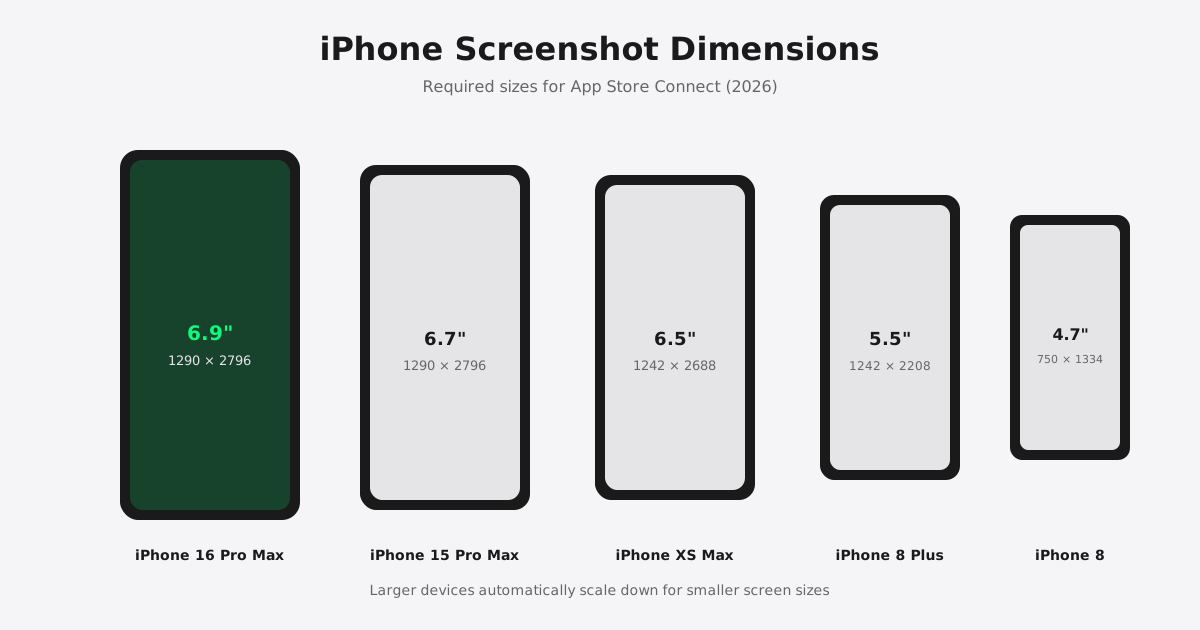
Here are the canonical iPhone sizes Apple accepts in 2026, in portrait orientation. Landscape is supported for each — just swap the width and height.

| Device class | Display size | Required pixel size (portrait) | Aspect ratio | Status |
|---|---|---|---|---|
| iPhone 16 Pro Max / 17 Pro Max | 6.9" | 1320 × 2868 | ~19.5:9 | Required (master) |
| iPhone 14/15/16 Plus & Pro Max | 6.7" | 1290 × 2796 | ~19.5:9 | Accepted (auto-scales) |
| iPhone 11 Pro Max / XS Max | 6.5" | 1242 × 2688 | ~19.5:9 | Optional fallback |
| iPhone 8 Plus | 5.5" | 1242 × 2208 | ~16:9 | Optional, recommended |
App Store Connect lets you upload up to 10 screenshots per device size. The first three are what users see without scrolling, so design them as a deliberate sequence — not as three independent images.
iPad screenshot sizes for App Store Connect (2026)
If your app supports iPad, you must provide at least one iPad screenshot set. Apple currently recognises three relevant iPad slots.
| Device class | Display size | Required pixel size (portrait) | Aspect ratio | Status |
|---|---|---|---|---|
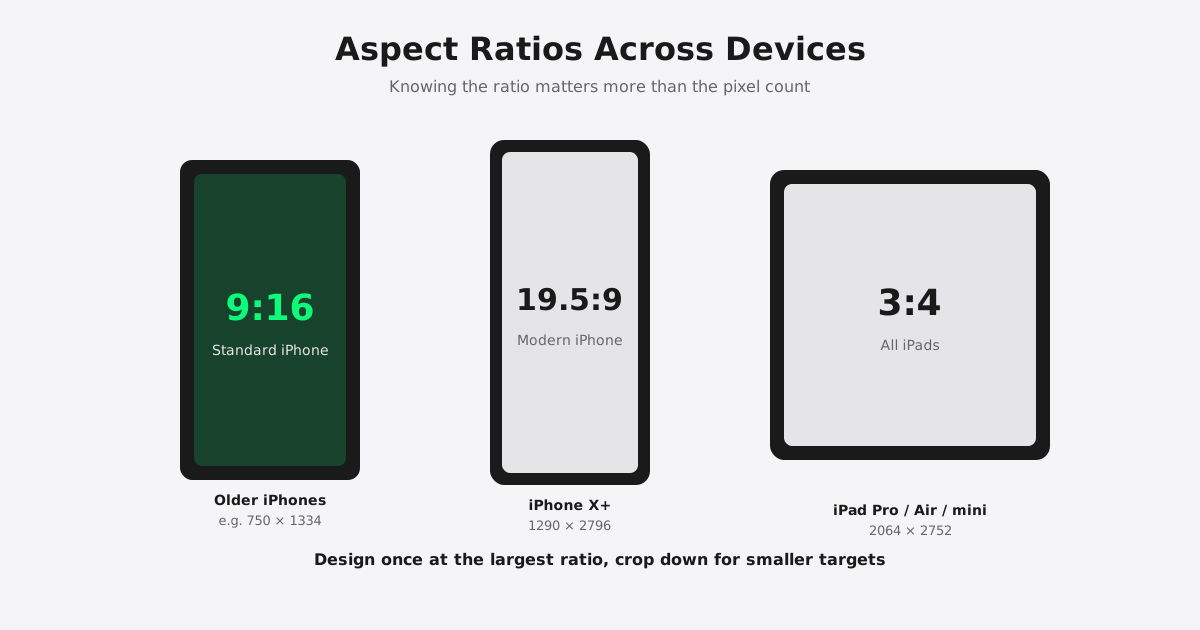
| iPad Pro M4 13" | 13" | 2064 × 2752 | 3:4 | Required (master) |
| iPad Pro 12.9" (3rd–6th gen) | 12.9" | 2048 × 2732 | ~3:4 | Accepted (auto-scales) |
| iPad Pro 11" / iPad Air | 11" | 1668 × 2388 | ~3:4 | Optional fallback |
| iPad mini (6th / 7th gen) | 8.3" | 1488 × 2266 | ~3:4 | Optional |
Apple Watch screenshot dimensions
If your app has a watchOS extension, Apple requires at least one Apple Watch screenshot. Three sizes are currently accepted.
| Device | Display size | Required pixel size |
|---|---|---|
| Apple Watch Ultra / Series 10 | 49 mm | 410 × 502 |
| Apple Watch Series 7+ | 45 mm | 396 × 484 |
| Apple Watch Series 4–6 | 44 mm | 368 × 448 |
Common rejection reasons
App Store Connect will silently reject — or, worse, accept and then flag — screenshots for any of the following reasons. We see these regularly in design reviews.
- Wrong pixel size. One pixel off in either dimension is enough. Always export at the spec, never "close enough."
- Compressed below 72 DPI or with visible artifacts. Use lossless PNG or high-quality JPG. Avoid screenshotting from a downscaled simulator window.
- Marketing claims that sound like reviews. "The #1 productivity app" or "Best of 2026" without a citation will be rejected.
- Restricted content in the visible frame. Other brands' logos, copyrighted artwork, or anything that violates 2.3.7 of the App Review Guidelines.
- Misleading UI. Showing features that do not exist in the build, or overlaying mocked-up content the app cannot actually produce.
Apple's screenshot best practices
Beyond the rejection list, Apple publishes a thin set of guidance in the App Store Connect Help. The practical version, distilled from how top-converting apps actually use these slots, looks like this.
- Make text readable on a phone. Headlines should be 60–96 px equivalent in your master file. If you have to squint on your laptop, it will be illegible on a 4.7" thumbnail in search results.
- Lead with the hero shot. Slot 1 is your billboard. Use it to communicate the single most important reason to install — not a generic "welcome" frame.
- Show actual UI, not abstract metaphors. Users want to know what they will see when they open the app. Mockups perform worse than real screens.
- Localise per market. If you ship in 10 languages, ship 10 screenshot sets. Apple's analytics consistently show localised assets convert 25–35% better than English-only.
Resize all sizes automatically
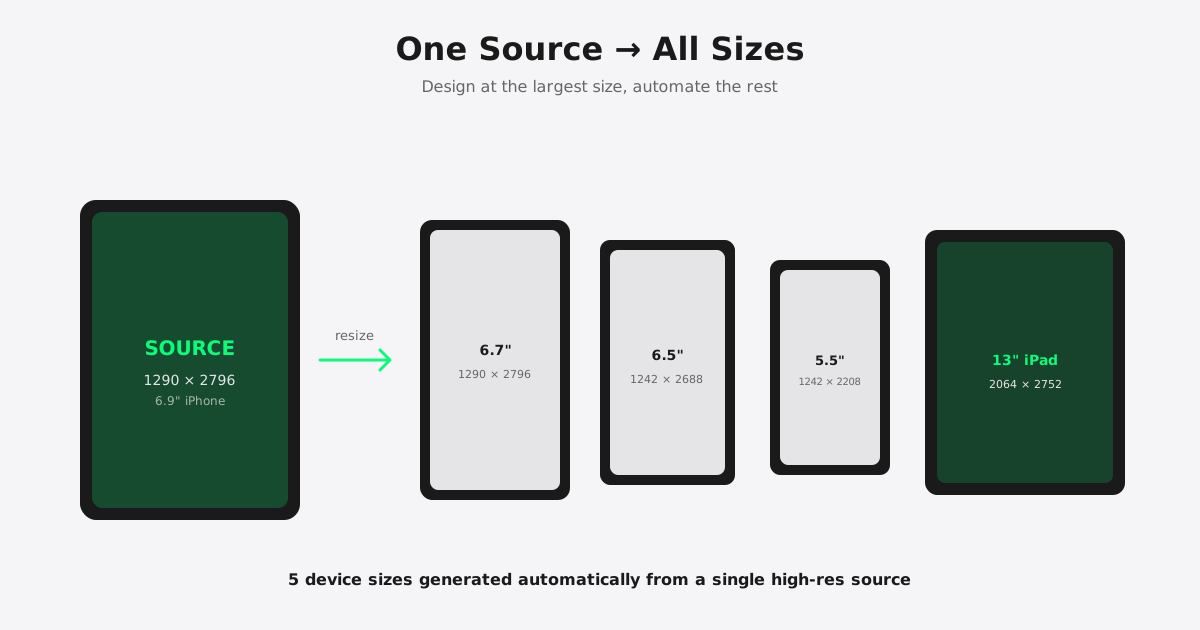
The single most painful part of this process is not the design — it's the export. You design once at the 6.9" master size, then have to re-export at 6.7", 6.5", 5.5", three iPad sizes, three Apple Watch sizes, multiplied by however many screenshots are in your set, multiplied by every locale you ship in. For a 5-screenshot, 5-language listing that's 175+ exports per release.
We built Verox App Screenshot Resizer precisely so we never have to do that by hand again. Drop in your master 6.9" PNGs, pick the device sizes you want, and download a zip of perfectly sized assets — no account, no upload to a third-party server, no watermark. It runs entirely in your browser.
Try it free: Verox App Screenshot Resizer →
Need help designing your store listing?
The dimensions are the easy part. Designing a screenshot sequence that actually converts is a different exercise — one that benefits from visual hierarchy, copywriting discipline, and a clear understanding of what your install funnel looks like before it hits the store. Verox Studio has shipped App Store assets for fintech, gaming, and SaaS apps with combined download counts in the millions. See our work or start a conversation if you'd like us to take this off your plate.
Ship pixel-perfect screenshots in minutes
Stop hand-resizing in Figma. Drop your 6.9" masters into the Verox App Screenshot Resizer and download every Apple-compliant size in one click.
Open the free tool →